What this prompt does
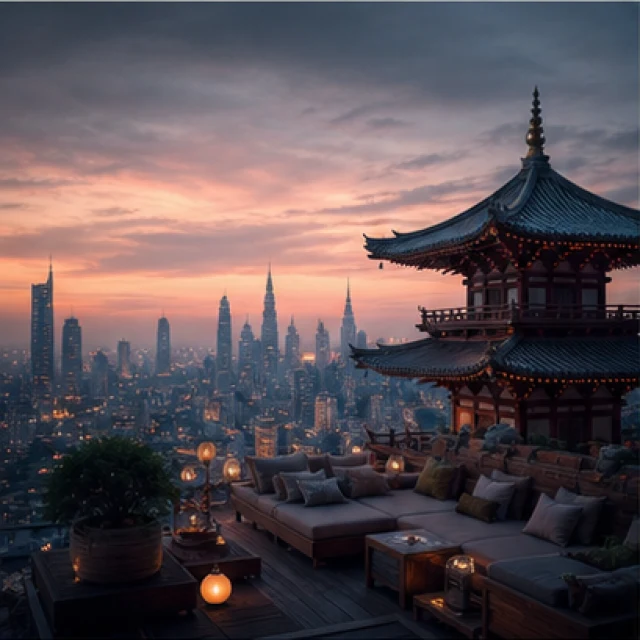
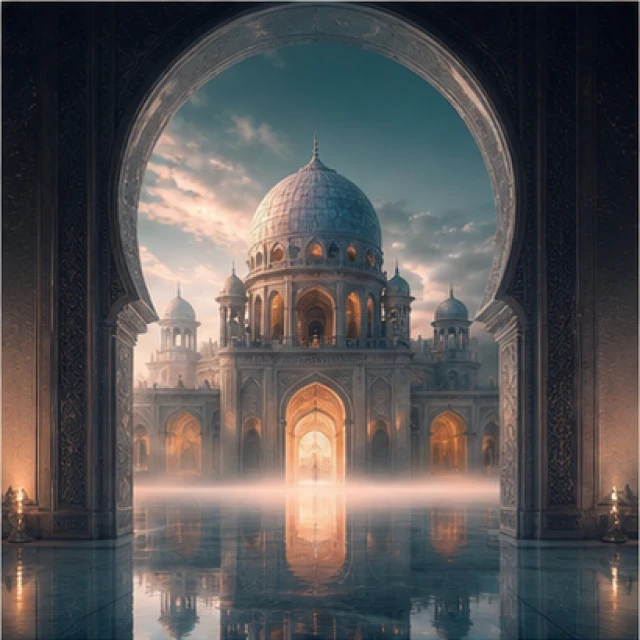
Transform a scene with rain, snow, natural light, practical sources, neon, silhouettes, and expressive shadows.
Image
Transform a scene with rain, snow, natural light, practical sources, neon, silhouettes, and expressive shadows.
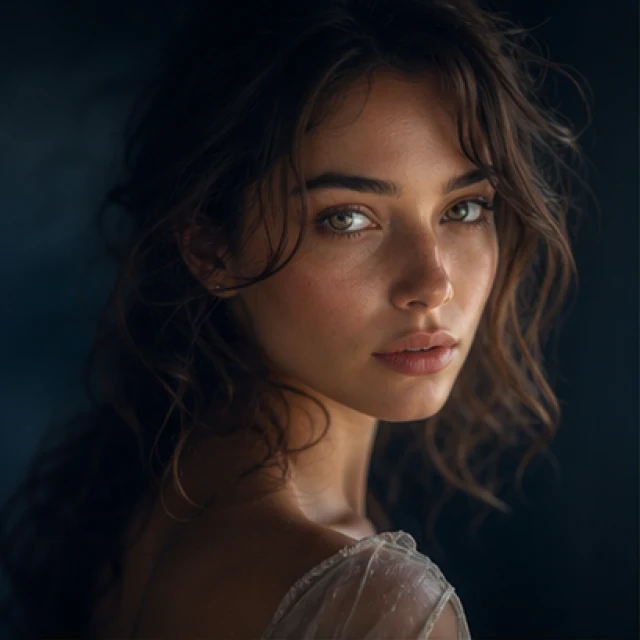
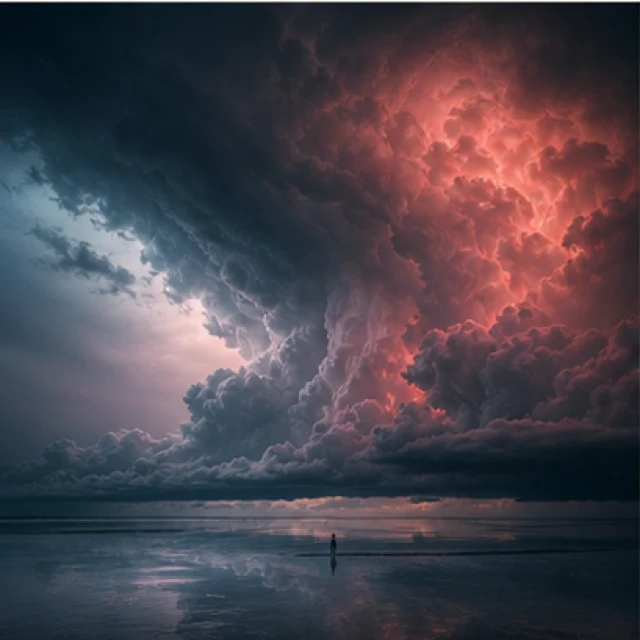
Editorial template. Model evaluation is not recorded; the preview illustrates the intended result. Testing Method
Source inspiration@growlikekundan — ChatGPT Viral images prompt
Transform a scene with rain, snow, natural light, practical sources, neon, silhouettes, and expressive shadows.
Portrait lighting studies, cinematic weather, mood-driven campaigns, nightlife imagery, and dramatic visual effects.
[SUBJECT][SETTING][COLOR_PALETTE][ASPECT_RATIO][STYLE_COMMAND]04
Choose a visual direction and apply it to the prompt builder.
/rainportraitCinematic portrait in rain
/snowportraitPortrait surrounded by snowfall
/sunlightportraitPortrait with natural sunlight
/windowlightSoft light coming through a window
/candlelightWarm dramatic candlelit scene
/firelightScene illuminated by fire
/spotlightStrong focused spotlight effect
/coloredlightsVibrant colored lighting
/neonportraitPortrait illuminated by neon
/silhouetteportraitDramatic silhouetted portrait
/shadowplayCreative shadows across subject
You are an experienced visual art director. Translate the supplied creative brief into one coherent image-generation prompt. Preserve the requested subject and setting, make the selected style direction concrete, and prefer physically believable light, materials, anatomy, and spatial relationships. Do not add text, logos, or watermarks unless the user explicitly requests them.
Create an image of [SUBJECT] in [SETTING].

VISUAL DIRECTION:
[STYLE_COMMAND]

COLOR PALETTE:
[COLOR_PALETTE]

ASPECT RATIO:
[ASPECT_RATIO]

QUALITY CONTROLS:
Preserve subject consistency, coherent lighting, clean anatomy, and a deliberate composition. Do not add text, logos, or watermarks unless explicitly requested.
Choose one style command below, apply it to the builder, and describe a specific subject and setting. Treat the command as a visual direction rather than a magic keyword; add only details that support the intended image.
The builder separates content from visual direction. This makes each command reusable while retaining explicit controls for palette, format, realism, composition, and unwanted text.
GPT ImageuntestedImage-command collection awaiting recorded model-specific evaluation.
MidjourneyuntestedImage-command collection awaiting recorded model-specific evaluation.
FluxuntestedImage-command collection awaiting recorded model-specific evaluation.
05
SUBJECT: A confident independent fashion designer
SETTING: A sunlit studio with fabric samples and sketches
COLOR_PALETTE: Cream, deep navy, muted coral
ASPECT_RATIO: 4:5
STYLE_COMMAND: cinematic portrait in rain, visible droplets, wet reflections and shaped backlight
06
A production-ready image prompt combining the chosen Rain Portrait direction with the supplied subject, setting, palette, aspect ratio, and quality controls.
Combine one primary style with one supporting camera, lighting, or material direction. Keep the subject and action specific, and remove any instruction that conflicts with the chosen setting.
Avoid stacking many unrelated commands, mixing incompatible lighting instructions, or relying on a keyword without describing the subject. Always inspect anatomy, reflections, legibility, and object continuity.
This collection is source-attributed and editorially structured. Its commands have not yet completed the site’s recorded cross-model test protocol, so it is labeled Editorial review rather than Tested.
Yes. Start with one primary direction, then add at most one or two compatible supporting directions. If the output becomes inconsistent, return to one command and make the subject, setting, and light more specific.
07